By: Melissa Travis, Student Assistant
Using Smart Response Clicker In the Classroom
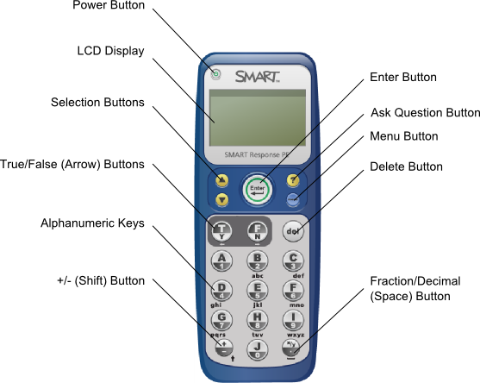
-Download Smart Response Software (Mac & PC)
–For trial version
-For Mac
-For Windows
-Full version come visit us at the iStudio (WQ 404)
Getting Started
1. Connect the Smart Response Receiver to a USB port on a computer.
2. Smart Response icon in Apple Top Menu should be yellow clicker. 
3. Add a class or Anonymous mode
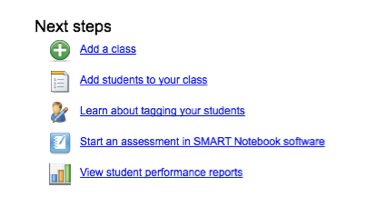
-Add a class fill out info
-Class name, period, location, passing grade
4. Add students
-Student tab then click add
5. Start making your questions open Notebook.
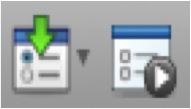
-Insert Question (green arrow down)
-Questions can be put randomly throughout the notebook
-Start assessment (play button)
-Can start or make the assessment
6. Types of questions
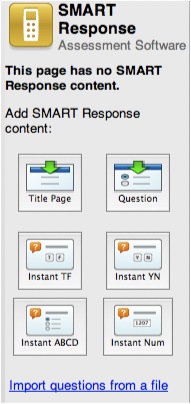
-Yes/No
-Multiple Choice
-Number, Fraction, Decimal
-True/False
-Multiple Answer